
Create and Edit Content with ChatGPT Canvas
Canvas, previously mentioned, unveils a new feature allowing direct editing in ChatGPT. In the ever-evolving world of generative AI tools,
Canvas, previously mentioned, unveils a new feature allowing direct editing in ChatGPT.
In the ever-evolving world of generative AI tools, Gennn remains at the forefront by presenting the latest innovations. Today, we focus on ChatGPT Canvas, a revolutionary feature for content creators.
Reminder: The old editing method
Before Canvas arrived, ChatGPT users had to adopt a somewhat cumbersome method to edit generated content. Once the text was produced, it had to be manually copied and pasted into a separate text editor, like Word or Google Docs. This step, although simple, became unavoidable for those who wanted to make modifications, adjust the tone, or rephrase certain parts of the text. This extra step could slow down the creation process, especially when a quick revision was needed.
Canvas: An integrated and seamless editing interface
With the introduction of Canvas, this constraint is now a thing of the past. As soon as you generate text with ChatGPT, an editing interface opens directly within the application. No more tedious copy-pasting! This integration allows for smooth and instant editing, significantly improving users' workflow and productivity.
Practical example: Writing a subscription cancellation letter
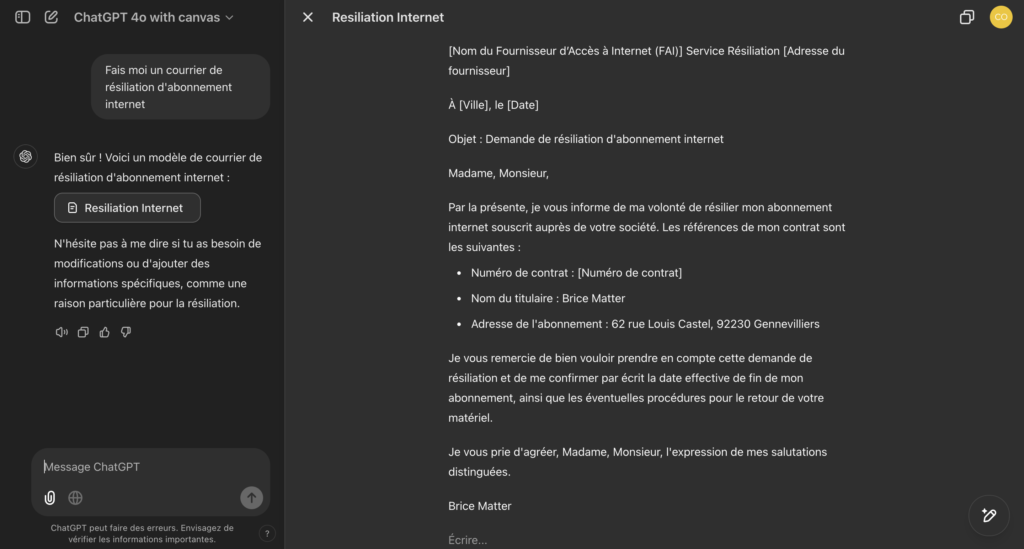
To illustrate the effectiveness of Canvas, let's take the example of writing this letter.
1. Choose the Canvas version:
• On the web: Select the “4.0 Canvas” version from the available options.
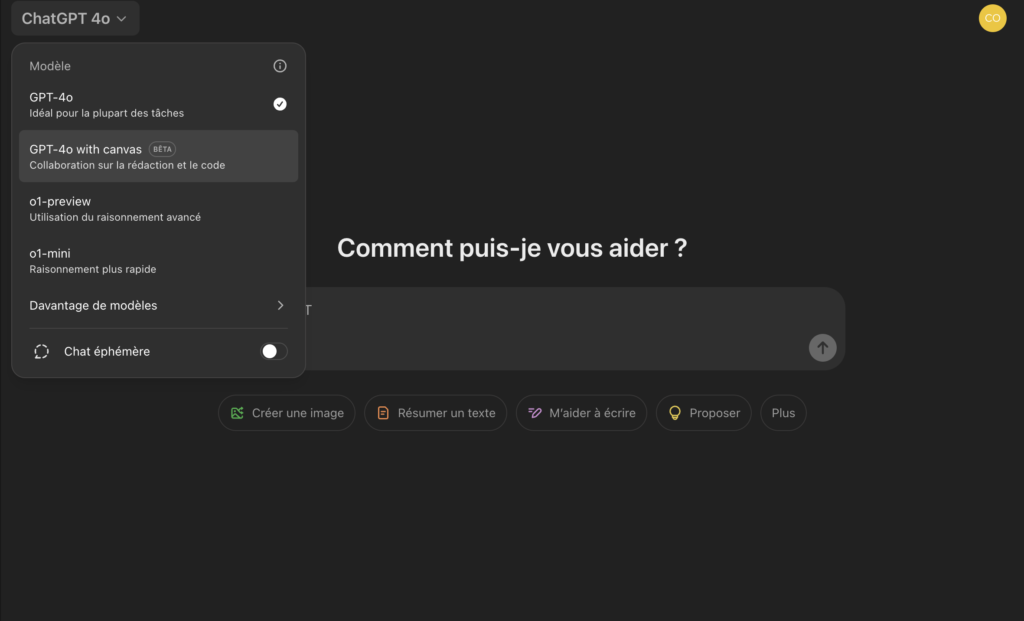
• On Desktop: Simply indicate in the prompt that you wish to use Canvas.
2. Generate and edit the text:
• Once the prompt is submitted, a new window opens on the right side of the screen.
• You can then edit the text directly from this space.
3. Complete the letter:
• If you want to add information or complete the letter, indicate it in the prompt.
• The completed text will automatically appear in the editing interface, ready to be modified as needed.
4. Adjust the tone:
• To adjust the tone of the letter, mention it in the prompt as well.
• The corrected text will appear instantly, allowing you to finalize your letter with the desired tone.
This feature is truly a major asset for anyone using ChatGPT for writing various content. It simplifies the editing process, making text creation faster and more efficient.
Available alternatives
While Canvas is a significant advancement, there are other tools offering similar features:
• Pages in Microsoft Teams: This platform also offers an integrated editing interface, facilitating collaboration and modification of generated documents.
• Word with Copilot for Office 365: If you have Copilot, Word offers AI-assisted editing capabilities, allowing real-time adjustments directly in your document.
Conclusion
The Canvas feature of ChatGPT represents a significant advancement for users of generative AI tools. By directly integrating text editing into the ChatGPT interface, it eliminates tedious intermediate steps and significantly improves the efficiency of the creation process. Whether you're a writer, professional, or just an occasional user, Canvas simplifies your editing tasks and allows you to focus on what matters most: creating quality content.